
Tag: Ubuntu 16.04

  • How to decode CSR (Certificate Signing Request) ?

    How to decode CSR (Certificate Signing Request) ?

    What is CSR?

    Certificate Signing Request
    Certificate Signing Request is encrypted piece of code which is going to used for generating the SSL Certificate for your domain name.


    CSR contains the information about Country, State, Location, Organisation Name, Common Name ie Domain Name , Email Address and Public Key.

    Lets see how to extract the information from the CSR file?

    How to extract information from the CSR?

    surya@x ~/ » openssl req -in blog.suryaelite.com.csr -text -noout

    How to verify the signature of CSR?

    surya@x ~/ » openssl req -in blog.suryaelite.com.csr -noout -verify

    To which company certificate is issued to?

    surya@x ~/ » openssl req -in blog.suryaelite.com.csr -noout -subject

    How to extract Public Key from CSR?

    surya@x ~/ » openssl req -in blog.suryaelite.com.csr -noout -pubkey

    This is how you can extract the various information from the CSR file.

  • AWS – NDB – Ubuntu – Add separate location for MySQL temporary (tmp) storage

    AWS – NDB – Ubuntu – Add separate location for MySQL temporary (tmp) storage

    aws_mysql_disk_addition

    By default MySQL uses the system default location used for temporary file storage, which is usually /tmp/var/tmp, or /usr/tmp. In Ubuntu its /tmp. It’s good practice to specify separate location for MySQL, if you want to prevent System restart. If tmp location is on separate location then only MySQL restart will needed in case of any disk increase needed in future.

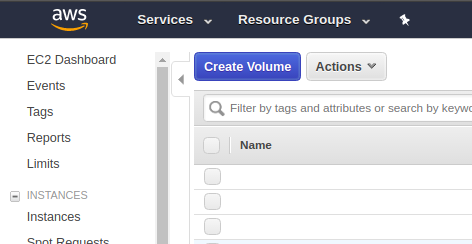
    Step 1: Create new EBS Volume by Login to Console and Click on EC2 Dashboard, then click on “Volumes”
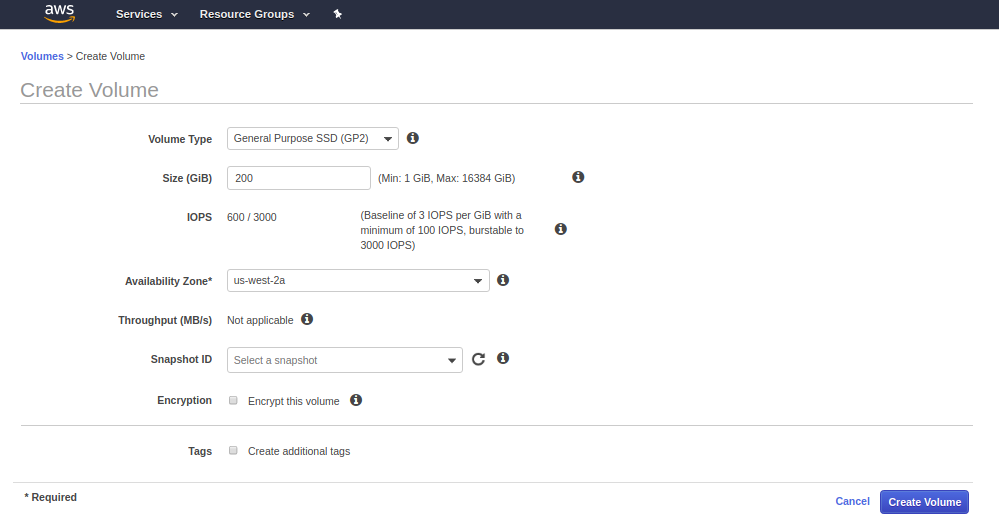
    Step 2: Fill the details of Volume and click on create and the new Volume will be created within few seconds.
     

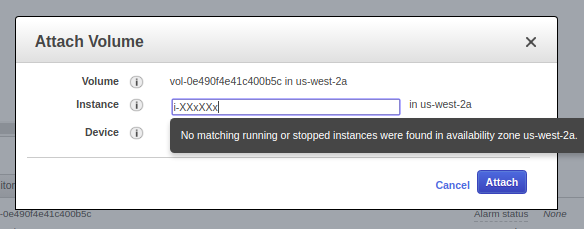
    Step 3: Attach the newly created volume to the Instance.
    Step 4: Check if the volume is attached or not by going to EC2 dashboard and clicking on that particular instance. You can also check by going to Volume stats as well.

    Step 5: Login to machine by your key or password.

    Step 6: Format Volume to ext4 and then mount it and make fstab entry as well.

    root@x:/mnt: lsblk
    NAME    MAJ:MIN RM   SIZE RO TYPE MOUNTPOINT
    xvda    202:0    0    40G  0 disk 
    └─xvda1 202:1    0    40G  0 part /
    xvdb    202:16   0   400G  0 disk /mnt/data
    xvdf    202:80   0   200G  0 disk 
    
    
    root@x: mkfs.ext4 /dev/xvdf
    mke2fs 1.42.9 (4-Feb-2014)
    Filesystem label=
    OS type: Linux
    Block size=4096 (log=2)
    Fragment size=4096 (log=2)
    Stride=0 blocks, Stripe width=0 blocks
    13107200 inodes, 52428800 blocks
    2621440 blocks (5.00%) reserved for the super user
    First data block=0
    Maximum filesystem blocks=4294967296
    1600 block groups
    32768 blocks per group, 32768 fragments per group
    8192 inodes per group
    Superblock backups stored on blocks: 
        32768, 98304, 163840, 229376, 294912, 819200, 884736, 1605632, 2654208, 
        4096000, 7962624, 11239424, 20480000, 23887872
    
    Allocating group tables: done                            
    Writing inode tables: done                            
    Creating journal (32768 blocks): done
    Writing superblocks and filesystem accounting information: done     
    
    
    root@x: mkdir /mnt/xvdf
    root@x:/mnt: sudo mount /dev/xvdf /mnt/xvdf/
    root@x: mkdir /mnt/xvdf/tmp_mysql
    root@x:/mnt/xvdf# chown -Rf mysql:mysql /mnt/xvdf/tmp_mysql
    root@x:/var: ln -s /mnt/xvdf/tmp_mysql/ /var/tmp_mysql
    

    Step 7: Now put the tmp_dir setting in /etc/my.cnf

    [mysqld]
    tmpdir = /var/tmp_mysql
    

    Step 8: Restart the MySQL and check for setting by Login to MySQL and executing below mentioned Query

    root@x:/: sudo service mysql restart


    mysql> SHOW VARIABLES LIKE 'tmpdir';

    This is how you can change the temporary directory in AWS hosted Ubuntu Linux environment.


  • Ubuntu 16.04 – Cisco VPN Client installation

    Ubuntu 16.04 – Cisco VPN Client installation

    cisco_vpn_client

    On Ubuntu 14.04 only sudo apt-get install network-manager-vpnc was working. But for Ubuntu 16.04 you need to install network-manager-vpnc-gnome as well.

    Step 1: Open Terminal
    Step 2: run below command to install the cisco client

    sudo apt-get install network-manager-vpnc network-manager-vpnc-gnome

    Step 3: Click on the “Network Icon” on toolbar, then click “Edit Connections”
    Step 4: Click on “Add” Button
    Step 5: Choose “Cisco Compatible VPN (vpnc)”, click on “Create”
    Step 6: Fill the below details on VPN Tab

    • Gateway: VPN IP 199.229.XXX.XXX
      UserName
    • UserPassword
    • GroupName
    • GroupPassword

    Step 7: Click on Save

    VPN Setup has been completed.

    To connect VPN, click on the Network Icon on toolbar. Click on VPN Connections. Choose the VPN which you have recently created.

    Please make sure, you are on different network to connect VPN.