Category: AWS

  • How to give access to specific users to specific buckets on AWS S3

    How to give access to specific users to specific buckets on AWS S3

    In AWS S3, you might want to provide the access to selected users to selected buckets. To provide the specific permissions you need to add a custom policy in IAM.

    Let’s learn,

    How to give permission to specific users to specific bucket?

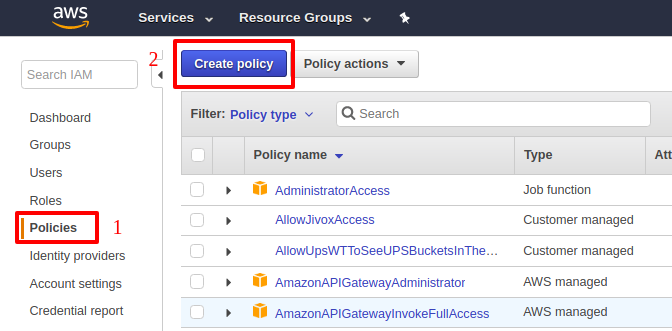
    After bucket creation in S3, Navigate to IAM management console and click on “Policies > Create Policy > then select “Create Your Own Policy"
    Fill the Policy Name and Description

    Fill below JSON to the Policy Document

    {
        "Version": "2012-10-17",
        "Statement": [
            {
                "Effect": "Allow",
                "Action": "s3:ListAllMyBuckets",
                "Resource": "arn:aws:s3:::*"
            },
            {
                "Effect": "Allow",
                "Action": [
                    "s3:*"
                ],
                "Resource": [
                    "arn:aws:s3:::your-bucket-name",
                    "arn:aws:s3:::your-bucket-name/*"
                ]
            }
        ]
    }

    In the above document, you can see that I have given access to list all the buckets – this is necessary, however I have given the full access on “your-bucket-name“.

    After this, click on the “Validate Policy“. After successful validation click on “Create Policy“. After successful creation of Policy, attach the policy to specific users.

    Tji

    This is how you can grant access of S3 bucket to specific users.
  • AWS – NDB – Ubuntu – Add separate location for MySQL temporary (tmp) storage

    AWS – NDB – Ubuntu – Add separate location for MySQL temporary (tmp) storage

    aws_mysql_disk_addition

    By default MySQL uses the system default location used for temporary file storage, which is usually /tmp/var/tmp, or /usr/tmp. In Ubuntu its /tmp. It’s good practice to specify separate location for MySQL, if you want to prevent System restart. If tmp location is on separate location then only MySQL restart will needed in case of any disk increase needed in future.

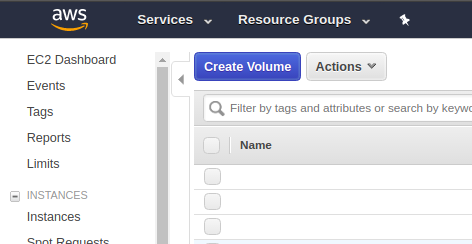
    Step 1: Create new EBS Volume by Login to Console and Click on EC2 Dashboard, then click on “Volumes”

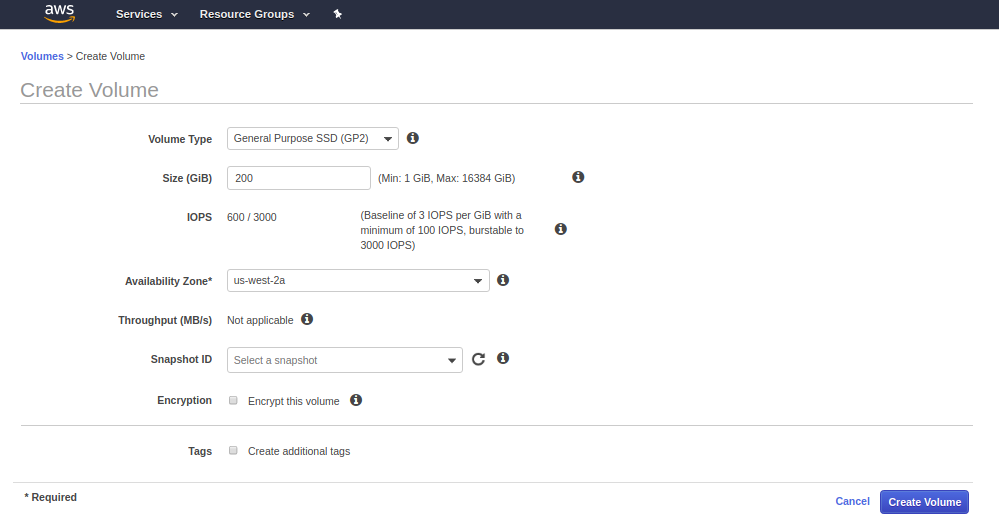
    Step 2: Fill the details of Volume and click on create and the new Volume will be created within few seconds.


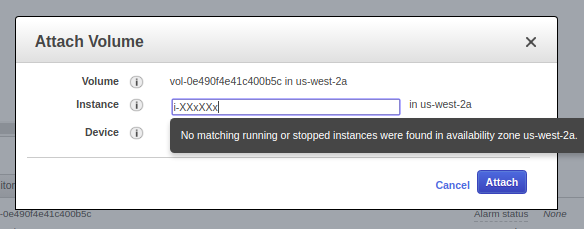
    Step 3: Attach the newly created volume to the Instance.

    Step 4: Check if the volume is attached or not by going to EC2 dashboard and clicking on that particular instance. You can also check by going to Volume stats as well.

    Step 5: Login to machine by your key or password.

    Step 6: Format Volume to ext4 and then mount it and make fstab entry as well.

    root@x:/mnt: lsblk
    NAME    MAJ:MIN RM   SIZE RO TYPE MOUNTPOINT
    xvda    202:0    0    40G  0 disk 
    └─xvda1 202:1    0    40G  0 part /
    xvdb    202:16   0   400G  0 disk /mnt/data
    xvdf    202:80   0   200G  0 disk 
    
    
    root@x: mkfs.ext4 /dev/xvdf
    mke2fs 1.42.9 (4-Feb-2014)
    Filesystem label=
    OS type: Linux
    Block size=4096 (log=2)
    Fragment size=4096 (log=2)
    Stride=0 blocks, Stripe width=0 blocks
    13107200 inodes, 52428800 blocks
    2621440 blocks (5.00%) reserved for the super user
    First data block=0
    Maximum filesystem blocks=4294967296
    1600 block groups
    32768 blocks per group, 32768 fragments per group
    8192 inodes per group
    Superblock backups stored on blocks: 
        32768, 98304, 163840, 229376, 294912, 819200, 884736, 1605632, 2654208, 
        4096000, 7962624, 11239424, 20480000, 23887872
    
    Allocating group tables: done                            
    Writing inode tables: done                            
    Creating journal (32768 blocks): done
    Writing superblocks and filesystem accounting information: done     
    
    
    root@x: mkdir /mnt/xvdf
    root@x:/mnt: sudo mount /dev/xvdf /mnt/xvdf/
    root@x: mkdir /mnt/xvdf/tmp_mysql
    root@x:/mnt/xvdf# chown -Rf mysql:mysql /mnt/xvdf/tmp_mysql
    root@x:/var: ln -s /mnt/xvdf/tmp_mysql/ /var/tmp_mysql
    

    Step 7: Now put the tmp_dir setting in /etc/my.cnf

    [mysqld]
    tmpdir = /var/tmp_mysql
    

    Step 8: Restart the MySQL and check for setting by Login to MySQL and executing below mentioned Query

    root@x:/: sudo service mysql restart


    mysql> SHOW VARIABLES LIKE 'tmpdir';

    This is how you can change the temporary directory in AWS hosted Ubuntu Linux environment.


  • Linux – Increase / Resize the Disk Storage in AWS EC2 EBS without reboot

    Linux – Increase / Resize the Disk Storage in AWS EC2 EBS without reboot

    From 13th Feb 2017, there is no need to reboot the EC2 instance for increasing the EBS disk storage.

    Amazon Web Services has announced –

    Amazon EBS Update — New Elastic Volumes Change Everything

    The good news is, EBS modification process is also applicable for root volumes as well. Let’s learn how to do that.

    How to increase the Linux AWS EC2 EBS storage without rebooting?

    • Login to AWS web console
    • Search for EC2 Service in the Console and click on that.

    AWS EC2 Search

    • Click on the EBS on the left menu and search for the volume you wish to modify.
    • Right click on the EBS Volume and click on Resize > Modify Volume

    ebs_modify_size

    • Click on “Modify” button and it will ask for confirmation.

    • Click on “Yes” Button and it will give the confirmation that volume has been modified or not.

    ebs_modification_succeded

    use lsblk to identify the volume information.

    [surya ~]$ lsblk
    NAME    MAJ:MIN RM SIZE RO TYPE MOUNTPOINT
    xvda    202:0    0  30G  0 disk
    └─xvda1 202:1    0  30G  0 part /
    xvdf    202:80   0  20G  0 disk /mnt
    └─xvdf1 202:81   0   10G  0 part

    Now you can see that xvdf has been increased to 20 GB

    now use file system specific commands to increase the volume size on the server.

    for Linux ext2, ext3, or ext4 file system use below commands to increase the volume

    # install "cloud-guest-utils" if it is not installed
    surya:~$ sudo apt install cloud-guest-utils
    
    surya:~$ sudo growpart /dev/xvdf 1
    CHANGED: disk=/dev/xvdf partition=1: start=4096 old: size=16773086,end=16777182 new: size=73396190,end=73400286

    Note: growpart command used when we want to increase a partition within disk. If there is no partition within the disk then use below command to resize the disk.

    resize2fs /dev/xvdf

    Now run lsblk command again to confirm

    [surya ~]$ lsblk
    NAME    MAJ:MIN RM SIZE RO TYPE MOUNTPOINT
    xvda    202:0    0  30G  0 disk
    └─xvda1 202:1    0  30G  0 part /
    xvdf    202:80   0  20G  0 disk /mnt
    └─xvdf1 202:81   0   20G  0 part

    Now run df -h to check the space

    surya:~$  df -h
    Filesystem            Size  Used Avail Use% Mounted on
    /dev/xvda1             70G  951M   69G   2% /
    tmpfs                 1.9G     0  1.9G   0% /dev/shm
    /dev/xvdf             20G   45M  20G   1% /mnt

    This is how you can increase the size of the EBS volume without rebooting the Linux machine.

    For more information please visit AWS Documentation.