Author: Surya

  • How to decode CSR (Certificate Signing Request) ?

    How to decode CSR (Certificate Signing Request) ?

    What is CSR?

    Certificate Signing Request
    Certificate Signing Request is encrypted piece of code which is going to used for generating the SSL Certificate for your domain name.


    CSR contains the information about Country, State, Location, Organisation Name, Common Name ie Domain Name , Email Address and Public Key.

    Lets see how to extract the information from the CSR file?

    How to extract information from the CSR?

    surya@x ~/ » openssl req -in blog.suryaelite.com.csr -text -noout

    How to verify the signature of CSR?

    surya@x ~/ » openssl req -in blog.suryaelite.com.csr -noout -verify

    To which company certificate is issued to?

    surya@x ~/ » openssl req -in blog.suryaelite.com.csr -noout -subject

    How to extract Public Key from CSR?

    surya@x ~/ » openssl req -in blog.suryaelite.com.csr -noout -pubkey

    This is how you can extract the various information from the CSR file.

  • Why to buy Pixel 2 by Google? not iPhone X !

    Why to buy Pixel 2 by Google? not iPhone X !

    Pixel Phone

    Yesterday Google launches Pixel 2 Phones.

    Below are the benefits of buying Google Pixel instead over iPhone X

    Unlimited Photos & Videos storage by Google

    If you buy Google Pixel, then Google is providing unlimited storage to store high quality images and full HD Videos. In today’s world high quality picture sizes varies from 3MB to 10MB in size and a full HD video of 30 mins easily reaches to GB’s. It’s really good to have unlimited storage to store them on Cloud securely.

    Built in Security Module

    Google has built a security chip to reinforce your lock screen against malware and hardware attacks.

    Google Assistance

    Google Assistant is good for request a ride, reserve a table and buy a ticket using just your voice. You can use google assistance for reminding about something, send whatsapp message to contact, take a selfie, all just by your voice. Its too easy to do that.

    Built in Image Stabilisation while recording the Video

    Its makes a great impact while recording the video. Built in image stabilisation makes video great. You can find this on below video. The left side of the video has no stabilization at all, with optical image stabilization (OIS) and electronic image stabilization (EIS) turned off. The right side is the Pixel 2 with Fused Video Stabilization enabled.

    Price

    Google Pixel is $150 is cheeper than iPhoneX

    Google Pixel Buds

    Google Pixel buds have about 4-5 hour of battery life with a carrying case that can charge it 4 times again. Pixel Buds’ fit is also adjustable, comes with more controls one tap to play and pause music, double tap to read out notifications, swipe across them to adjust volume. Google Pixel buds are also wired in between, so that one doesn’t get lost easily.

  • AWS – NDB – Ubuntu – Add separate location for MySQL temporary (tmp) storage

    AWS – NDB – Ubuntu – Add separate location for MySQL temporary (tmp) storage

    aws_mysql_disk_addition

    By default MySQL uses the system default location used for temporary file storage, which is usually /tmp/var/tmp, or /usr/tmp. In Ubuntu its /tmp. It’s good practice to specify separate location for MySQL, if you want to prevent System restart. If tmp location is on separate location then only MySQL restart will needed in case of any disk increase needed in future.

    Step 1: Create new EBS Volume by Login to Console and Click on EC2 Dashboard, then click on “Volumes”
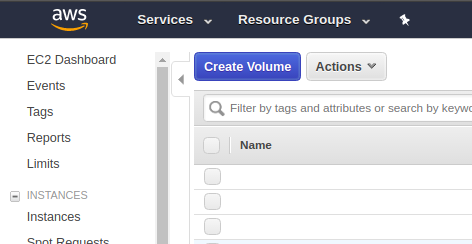
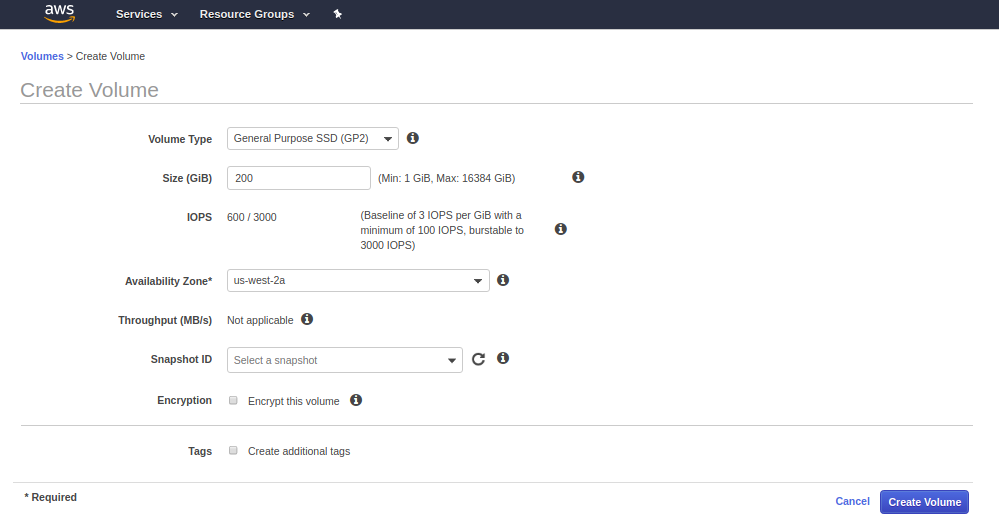
    Step 2: Fill the details of Volume and click on create and the new Volume will be created within few seconds.
     

    Step 3: Attach the newly created volume to the Instance.
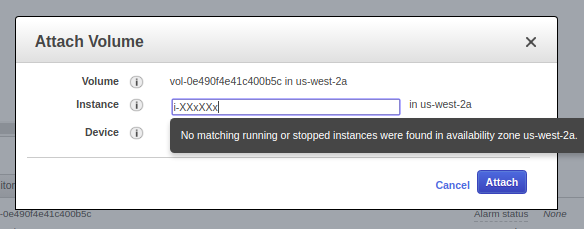
    Step 4: Check if the volume is attached or not by going to EC2 dashboard and clicking on that particular instance. You can also check by going to Volume stats as well.

    Step 5: Login to machine by your key or password.

    Step 6: Format Volume to ext4 and then mount it and make fstab entry as well.

    root@x:/mnt: lsblk
    NAME    MAJ:MIN RM   SIZE RO TYPE MOUNTPOINT
    xvda    202:0    0    40G  0 disk 
    └─xvda1 202:1    0    40G  0 part /
    xvdb    202:16   0   400G  0 disk /mnt/data
    xvdf    202:80   0   200G  0 disk 
    
    
    root@x: mkfs.ext4 /dev/xvdf
    mke2fs 1.42.9 (4-Feb-2014)
    Filesystem label=
    OS type: Linux
    Block size=4096 (log=2)
    Fragment size=4096 (log=2)
    Stride=0 blocks, Stripe width=0 blocks
    13107200 inodes, 52428800 blocks
    2621440 blocks (5.00%) reserved for the super user
    First data block=0
    Maximum filesystem blocks=4294967296
    1600 block groups
    32768 blocks per group, 32768 fragments per group
    8192 inodes per group
    Superblock backups stored on blocks: 
        32768, 98304, 163840, 229376, 294912, 819200, 884736, 1605632, 2654208, 
        4096000, 7962624, 11239424, 20480000, 23887872
    
    Allocating group tables: done                            
    Writing inode tables: done                            
    Creating journal (32768 blocks): done
    Writing superblocks and filesystem accounting information: done     
    
    
    root@x: mkdir /mnt/xvdf
    root@x:/mnt: sudo mount /dev/xvdf /mnt/xvdf/
    root@x: mkdir /mnt/xvdf/tmp_mysql
    root@x:/mnt/xvdf# chown -Rf mysql:mysql /mnt/xvdf/tmp_mysql
    root@x:/var: ln -s /mnt/xvdf/tmp_mysql/ /var/tmp_mysql
    

    Step 7: Now put the tmp_dir setting in /etc/my.cnf

    [mysqld]
    tmpdir = /var/tmp_mysql
    

    Step 8: Restart the MySQL and check for setting by Login to MySQL and executing below mentioned Query

    root@x:/: sudo service mysql restart


    mysql> SHOW VARIABLES LIKE 'tmpdir';

    This is how you can change the temporary directory in AWS hosted Ubuntu Linux environment.


  • Ubuntu 16.04 – Cisco VPN Client installation

    Ubuntu 16.04 – Cisco VPN Client installation

    cisco_vpn_client

    On Ubuntu 14.04 only sudo apt-get install network-manager-vpnc was working. But for Ubuntu 16.04 you need to install network-manager-vpnc-gnome as well.

    Step 1: Open Terminal
    Step 2: run below command to install the cisco client

    sudo apt-get install network-manager-vpnc network-manager-vpnc-gnome

    Step 3: Click on the “Network Icon” on toolbar, then click “Edit Connections”
    Step 4: Click on “Add” Button
    Step 5: Choose “Cisco Compatible VPN (vpnc)”, click on “Create”
    Step 6: Fill the below details on VPN Tab

    • Gateway: VPN IP 199.229.XXX.XXX
      UserName
    • UserPassword
    • GroupName
    • GroupPassword

    Step 7: Click on Save

    VPN Setup has been completed.

    To connect VPN, click on the Network Icon on toolbar. Click on VPN Connections. Choose the VPN which you have recently created.

    Please make sure, you are on different network to connect VPN.

  • Solution – Apache – SoftException in Application.cpp:388: GID of script “index.php” is smaller than min_gid error

    Solution – Apache – SoftException in Application.cpp:388: GID of script “index.php” is smaller than min_gid error

    apache 500 error

    If you are getting the errors in apache logs like below in cPanel/WHM web hosting

    Error: Apache – SoftException in Application.cpp:388: GID of script “index.php”

    [Mon Oct 02 08:29:33.684683 2017] [core:error] [pid 24787:tid 140323590199040] [client 91.73.173.118:50064] End of script output before headers: index.php
    [Mon Oct 02 08:29:34.812915 2017] [:error] [pid 9068:tid 140323474810624] [client 91.73.173.118:50065] SoftException in Application.cpp:388: GID of script "/index.php" is smaller than min_gid
    [Mon Oct 02 08:29:34.812981 2017] [core:error] [pid 9068:tid 140323474810624] [client 91.73.173.118:50065] End of script output before headers: index.php
    [Mon Oct 02 08:29:34.817808 2017] [:error] [pid 9068:tid 140323474810624] [client 91.73.173.118:50065] SoftException in Application.cpp:388: GID of script "index.php" is smaller than min_gid

    most probably the file user or group ownership has been changed of that file to root.

    root@x.com [directory]# ls -lrt | grep "index.php"
    total 48000
    
    -rw-r--r-- 1 abc_user root         1782 Oct  2 07:10 index.php
    

    Now change the ownership  back to current user is the fix

    Solution: Change the Ownership of file to the  ‘username’ where public_html folder is present.

    Like in /home/abc_user/public_html/ the user will be ‘abc_user

    root@x.com [directory]# sudo chown abc_user:abc_user index.php
    

    This is how you can fix above mentioned problem.

    The above fix will also work for below mentioned error

    Error : Apache Mismatch between target GID (501) and GID (99) of file “index.php”

    [Mon Oct 02 08:30:52.056769 2017] [core:error] [pid 24787:tid 140323474810624] [client 91.73.173.118:51627] End of script output before headers: index.php
    [Mon Oct 02 08:30:52.062511 2017] [:error] [pid 24787:tid 140323474810624] [client 91.73.173.118:51627] SoftException in Application.cpp:456: Mismatch between target GID (501) and GID (99) of file "index.php"
    [Mon Oct 02 08:30:52.062577 2017] [core:error] [pid 24787:tid 140323474810624] [client 91.73.173.118:51627] End of script output before headers: index.php
    [Mon Oct 02 08:30:54.060966 2017] [:error] [pid 24729:tid 140323464320768] [client 154.122.107.180:33276] SoftException in Application.cpp:456: Mismatch between target GID (501) and GID (99) of file "index.php", referer: http://m.facebook.com/


  • Top 3 ways to debug your code while programming

    Top 3 ways to debug your code while programming

    If you do programming, you will definitely face problems with your code and stuck somewhere. That situation is pretty frustrating for beginners. Lets know how to deal with these situations and get the answers of the problem.

    1. Debug your code

    • Check for error messages in the trace log. You will most probably get the line number where the problem is, like missing semicolon, or braces are not closed properly. Most probably you will get something useful piece of information to fix the code.
    • Delete the lines and add one by one until the problem started coming.
    • Print the custom logs on log files and do check them.

    By this time at-least you will know where the problem is.

    2. Find solutions Online in Google or StackOverFlow

    • Paste the error code in Google along with the programming language. You will get the answer in top 5 links provided by google.
    • Make Google your friend – If you don’t know how to do a specific thing, you can always search in Google or StackOverFlow like How to do loop in Java or C.

    3. Ask questions in IRC

    If the Google Searches or StackOverFlow doesn’t solve your problem. Ask the problem in Internet Relay Chat ie. in Freenode.
    Make sure you ask right question with some lines of code pasted on Pastebin, so that others can look into that. Be Thankful to people who helped you while fixing the code.

    If you want to know, how to ask questions smartly follow the below mentioned guide.

     This is how you can fix your problems effectively while doing code. Happy Coding!
  • Linux – Increase / Resize the Disk Storage in AWS EC2 EBS without reboot

    Linux – Increase / Resize the Disk Storage in AWS EC2 EBS without reboot

    From 13th Feb 2017, there is no need to reboot the EC2 instance for increasing the EBS disk storage.

    Amazon Web Services has announced –

    Amazon EBS Update — New Elastic Volumes Change Everything

    The good news is, EBS modification process is also applicable for root volumes as well. Let’s learn how to do that.

    How to increase the Linux AWS EC2 EBS storage without rebooting?

    • Login to AWS web console
    • Search for EC2 Service in the Console and click on that.

    AWS EC2 Search

    • Click on the EBS on the left menu and search for the volume you wish to modify.
    • Right click on the EBS Volume and click on Resize > Modify Volume

    ebs_modify_size

    • Click on “Modify” button and it will ask for confirmation.

    • Click on “Yes” Button and it will give the confirmation that volume has been modified or not.

    ebs_modification_succeded

    use lsblk to identify the volume information.

    [surya ~]$ lsblk
    NAME    MAJ:MIN RM SIZE RO TYPE MOUNTPOINT
    xvda    202:0    0  30G  0 disk
    └─xvda1 202:1    0  30G  0 part /
    xvdf    202:80   0  20G  0 disk /mnt
    └─xvdf1 202:81   0   10G  0 part

    Now you can see that xvdf has been increased to 20 GB

    now use file system specific commands to increase the volume size on the server.

    for Linux ext2, ext3, or ext4 file system use below commands to increase the volume

    # install "cloud-guest-utils" if it is not installed
    surya:~$ sudo apt install cloud-guest-utils
    
    surya:~$ sudo growpart /dev/xvdf 1
    CHANGED: disk=/dev/xvdf partition=1: start=4096 old: size=16773086,end=16777182 new: size=73396190,end=73400286

    Note: growpart command used when we want to increase a partition within disk. If there is no partition within the disk then use below command to resize the disk.

    resize2fs /dev/xvdf

    Now run lsblk command again to confirm

    [surya ~]$ lsblk
    NAME    MAJ:MIN RM SIZE RO TYPE MOUNTPOINT
    xvda    202:0    0  30G  0 disk
    └─xvda1 202:1    0  30G  0 part /
    xvdf    202:80   0  20G  0 disk /mnt
    └─xvdf1 202:81   0   20G  0 part

    Now run df -h to check the space

    surya:~$  df -h
    Filesystem            Size  Used Avail Use% Mounted on
    /dev/xvda1             70G  951M   69G   2% /
    tmpfs                 1.9G     0  1.9G   0% /dev/shm
    /dev/xvdf             20G   45M  20G   1% /mnt

    This is how you can increase the size of the EBS volume without rebooting the Linux machine.

    For more information please visit AWS Documentation.